If you’re an iPhone user, you’ve likely heard of Reachability — a handy feature designed to make one-handed use easier by bringing the top of the screen within your thumb’s reach. In this blog, Tech Temple will walk you through everything you need to know about iPhone Reachability settings, how to enable it, customize it, and why it can improve your daily phone experience.
What is iPhone Reachability?
Reachability is an accessibility feature introduced by Apple to help users navigate large iPhones with just one hand. When activated, it shifts the screen content down so that you can easily tap the top buttons or notifications without stretching your thumb awkwardly.
This is especially useful for larger models like the iPhone 12 Pro Max, iPhone 13 Pro Max, or iPhone 14 Plus, where reaching the upper part of the display can be challenging.
Which iPhones Support Reachability?
Reachability works on all iPhones that have Face ID or Touch ID and support iOS 11 or later. This includes:
- iPhone 6 and newer (iPhone 6, 6S, 7, 8, SE 2nd gen, SE 3rd gen)
- iPhone X and later models with Face ID
How to Enable Reachability on Your iPhone
Reachability is typically turned on by default, but if you’re not sure, here’s how to check and enable it:
For iPhones with Face ID (iPhone X and later):
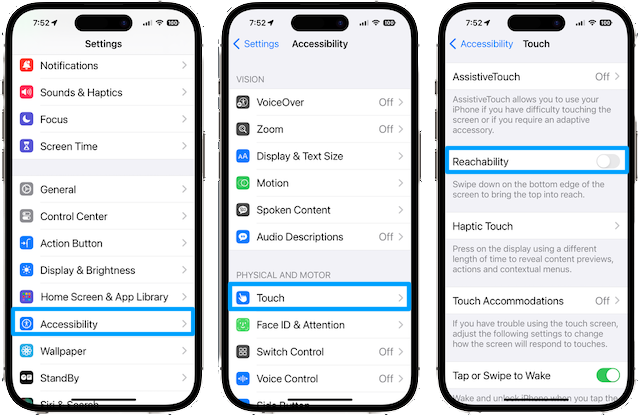
- Go to Settings > Accessibility.
- Tap Touch.
- Scroll down and toggle on Reachability.
To activate Reachability, simply swipe down on the bottom edge of your screen. The top half will slide down, making it easier to reach.
For iPhones with Home Button:
- Go to Settings > Accessibility.
- Tap Touch.
- Toggle on Reachability.
To use it, lightly double-tap (not press) the Home button, and the screen will slide down.
Customizing Your Reachability Experience
While Apple doesn’t offer deep customization for Reachability, here are some tips to get the most out of it:
- Use Reachability to interact with Notification Center, Control Center, or apps with buttons on the top.
- Pair it with One-Handed Keyboard mode to type efficiently.
- Combine Reachability with other accessibility features like AssistiveTouch for easier navigation.
Why Use Reachability? Benefits at a Glance
- Improves one-handed usability on larger iPhones.
- Reduces thumb strain by minimizing stretching.
- Helps access top screen buttons and controls faster.
- Great for multitasking and quick actions on the go.
Troubleshooting Reachability Not Working
If Reachability isn’t working on your iPhone, try these fixes:
- Ensure Reachability is enabled in Settings > Accessibility > Touch.
- Restart your iPhone.
- Check for iOS updates under Settings > General > Software Update.
- Reset settings if needed (Settings > General > Reset > Reset All Settings).
Conclusion
The iPhone Reachability setting is a simple but powerful tool to improve your iPhone’s usability, especially if you often use your device one-handed or have a larger screen model. Enabling this feature can make daily navigation easier, more ergonomic, and efficient.
For more tips, tutorials, and tech guides, keep following Tech Temple — your trusted source for all things tech!